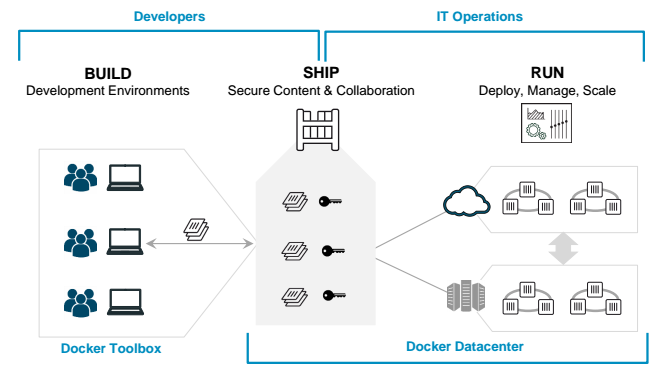
Bureau d'études Docker - Build, Ship, Run🔗
Warning
Ensure that you are running on the latest codespace which was updated today. Do not use previous codespace of the last day of classes.
Learning Objectives🔗
By the end of this workshop, you will be able to:
- Understand Dockerfile structure - Read and explain what each instruction in a Dockerfile does
- Build Docker images - Use
docker buildwith proper tagging conventions for a container registry - Push/Pull from a registry - Authenticate to Google Artifact Registry and exchange images with teammates
- Run containers with configuration - Map ports, set environment variables, and understand container lifecycle
Warning
Please read all the text in the question before executing the step-by-step instructions because there might be help or indications after the instructions.
Prerequisites🔗
Before starting this workshop, you should have:
- Set up your GitHub Codespace (from the previous session)
- Installed and configured the
gcloudCLI (from the previous session) - Manipulated Google Cloud Storage in the previous session
Tip
Use Google Chrome without any ad blockers if you have any issues, or use the local VSCode + Codespace extension. If you have connectivity issues, switch your wi-fi connection between eduroam (preferred), isae-edu, or a 4G hotspot.
Team Setup🔗
You should be in teams of 2-5 people.
Each team member picks a different mascot and remembers it:
- 🐈 cat
- 🐕 dog
- 👽 yoda
- 🦉 owl
- 🐼 panda
Find a group name for your team - you will need it for tagging your images.
Shared Container Registry
A container registry has been pre-created for this workshop. You will push and pull images from:
europe-docker.pkg.dev/isae-sdd-481407/isae-sdd-de-2526-docker
Phase 1: BUILD🔗
1.1 - Start Development Environment (GitHub Codespace)🔗
Launch your GitHub Codespace from the preconfigured repository: https://github.com/fchouteau/isae-cloud-computing-codespace
Ensure that the gcloud CLI is installed and configured (run gcloud init like last time).
Go to the working directory which is be-docker-build-ship-run using cd be-docker-build-ship-run.
1.2 - Get Resources from Google Cloud Storage🔗
From your GitHub Codespace, download your mascot resources. First, set your mascot:
export MASCOT=<your chosen mascot> # cat, dog, owl, panda, or yoda
Only download your mascot (no cheating - this will cause confusion later!)
gcloud storage cp -r gs://fchouteau-isae-cloud/be/${MASCOT} .
cd ${MASCOT}
You should see a file structure like this:
yoda/
├── app.py
├── AUTHOR.txt
├── Dockerfile
├── favicon.ico
├── imgs
│   ├── 1.gif
│   ├── 2.gif
│   ├── 3.gif
│   ├── 4.gif
│   └── 5.gif
└── template.html.jinja2
1.3 - Build your Docker image🔗
Question
- Look at the
Dockerfile(cat Dockerfile), what does each instruction do? - Look at
app.py(cat app.py). What is Flask? What does this app do?
Edit the file AUTHOR.txt to add your name instead of the placeholder.
Danger
On which port is your Flask app running? (check the Dockerfile)
Note it carefully - you will need to communicate it to your teammates!
Set your group name and build the image:
export GROUPNAME=<your team name>

docker build -t europe-docker.pkg.dev/isae-sdd-481407/isae-sdd-de-2526-docker/${GROUPNAME}-${MASCOT}:1.0 .
Verify with docker images - you should see your image listed.
Question
Describe concisely to your past self what is a Docker Image
Checkpoint
Wait for instructor confirmation that everyone has built their image before moving to the SHIP phase.
Phase 2: SHIP🔗
2.1 - Authenticate to the Container Registry🔗
Configure Docker to authenticate with Google Artifact Registry:
gcloud auth configure-docker europe-docker.pkg.dev
2.2 - Push your Docker image🔗
Push your image to the shared registry:
docker push europe-docker.pkg.dev/isae-sdd-481407/isae-sdd-de-2526-docker/${GROUPNAME}-${MASCOT}:1.0
Question
What is a Container Registry? Why not just share Dockerfiles instead of images?
Answer
Pre-built images ensure consistency across environments, faster deployment (no build step needed), and no build dependencies required on the target machine.
2.3 - Communicate with your team🔗
Share with your teammates:
- Your image name (e.g.,
team1-yoda:1.0) - Your port number (from your Dockerfile)
Checkpoint
Wait for instructor confirmation that all images are pushed before moving to the RUN phase.
Phase 3: RUN🔗
3.1 - Pull your teammate's image🔗
Get the image name and port number from one of your teammates, then pull their image:
export TEAMMATE_MASCOT=<teammate's mascot>

docker pull europe-docker.pkg.dev/isae-sdd-481407/isae-sdd-de-2526-docker/${GROUPNAME}-${TEAMMATE_MASCOT}:1.0
Verify with docker images - you should see your teammate's image.
3.2 - Run the container🔗
Run your teammate's container with port mapping and your name as an environment variable:
docker run -d -p 8080:<TEAMMATE_PORT> -e USER="<your name>" \
  europe-docker.pkg.dev/isae-sdd-481407/isae-sdd-de-2526-docker/${GROUPNAME}-${TEAMMATE_MASCOT}:1.0
Replace <TEAMMATE_PORT> with the port number your teammate told you (from their Dockerfile).
3.3 - Access via Codespace Port Forwarding🔗
- Open the "Ports" tab in VS Code (bottom panel)
- Port 8080 should appear automatically when the container starts
- Click the globe icon or "Open in Browser" to access the webapp
Tip
You can also publicly share the Codespace preview link so that other people can see your results.
3.4 - Container Management🔗
Useful commands to manage your containers:
docker ps          # See running containers
docker logs <id>   # Check logs if issues
docker stop <id>   # Stop a container
Success Criteria🔗
Your running webapp must show:
| Checkpoint | What it proves |
|---|---|
| Displays teammate's mascot (not your own) | You pulled the correct image |
| Shows author name (teammate's name) | Image was built by your teammate |
| Shows your name | You configured the USER env var at runtime |
Bug
If any of the three items above are missing, use the troubleshooting guide below!
Troubleshooting Guide🔗
| Problem | Likely cause | Fix |
|---|---|---|
| Wrong mascot | Pulled wrong image | Check image name, repull |
| Author shows placeholder | Teammate forgot AUTHOR.txt | Teammate rebuilds & repushes |
| Your name missing | Forgot -e USER=... |
Stop container, rerun with env var |
| Page not loading | Wrong port mapping | Check teammate's port, fix -p flag |
Example
Try to refresh the webpage to make more gifs appear!
Share your result on Slack
What's Next?🔗
You've successfully built, shipped, and run Docker containers. But consider these limitations:
| Limitation | Why it matters |
|---|---|
| Only accessible via your Codespace | No public URL - others can't see your app |
| Ephemeral | When Codespace stops, container dies |
| No scaling | One container handles all requests |
| Manual process | You ran docker run by hand |
Coming up: Deployment
In the Deployment session, we'll solve these problems: deploy containers to real cloud infrastructure with public URLs, automatic restarts, and managed scaling.
Cleanup🔗
Stop and remove your containers (optional but good practice):
# Stop running containers
docker ps -q | xargs -r docker stop

# Remove containers
docker ps -aq | xargs -r docker rm

# (Optional) Remove local images
docker images -q | xargs -r docker rmi
Note
Codespaces are ephemeral, so cleanup is optional. Everything will be removed when the Codespace is deleted.
Congratulations!🔗
Success
You have successfully completed the Build-Ship-Run workflow! You now understand the fundamental Docker concepts that power modern application deployment.