Bureau d'études Cloud & Docker Partie 1🔗
Objectives of this BE🔗
This Bureau d'études (BE, for short) will guide you through the essential notions to be able to manipulate with regard to cloud computer and docker,
We will go through several steps
- Working in a remote environment (in a GitHub CodeSpace, inside a VM)
- Creation and ssh connection to virtual machine instances
- Using managed storage capabilities (gcs://)
- Creating your own docker images
- Exchanging docker images through a Container Registry
- Pulling and running docker images created by your teammates
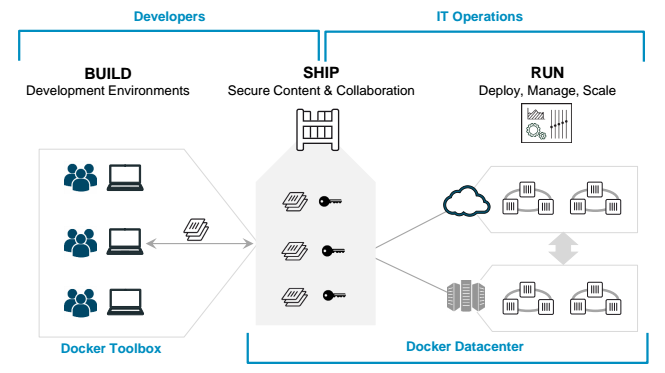
In particular, this workflow:
Warning
Please read all the text in the question before executing the step-by-step instructions because there might be help or indications after the instructions.
How to run this BE🔗
The best way to run this BE is to setup a Github Codespace VM and install the google cloud sdk. Refer to the previous hands-on to learn more
We will be using the gcloud CLI for the following:
- Create a GCE Virtual Machine
- Connect to SSH with port forwarding to said machine
For the rest of this walkthrough, if it is specified "from your local machine", this will be "github codespace"
If it is specified "inside the VM", this means that you should run it inside the GCE VM, which means you need to connect to it using an SSH tunnel first...
🙏🏻 Use Google Chrome without any ad blockers if you have any issues, or use the local VSCode + CodeSpace extension
Warning
⚠️ Normally you will do everything from your browser, connected to the github codespace, so it should work
⚠️ if you have any issues, switch your wi-fi connection between eduroam (preferred), isae-edu or a 4G hotspot
Team composition & Setup🔗
You should be in team of 5, however this will work with a minimum of 2 people.
Each team member picks a different cute mascot and remembers it:
- 🐈 cat
- 🐕 dog
- 👽 (baby) yoda
- 🦉 owl
- 🐼 panda
Find a groupname, because you will need it for the next steps
One of the team member will add the others into their GCP project so that everyone can collaborate.
Designate a "project manager" (the person who is the most comfortable with the google cloud platform UI). That person will have the hard task of giving access to his/her GCP project to the other team members to enable collaboration.
This means that the project of the "team leader" will be billed a little more for the duration of this BE, so please be kind with the project and apply good cloud hygiene :)
Rest assured, this will not cost very much !
How to do that ?
Go to the "IAM & Admin / IAM" section of the Google Cloud Console, then locate the "grant access",
Grant access to your each of your teammates using the "Editor Role" (Basic -> Editor)
Here are some screenshots to help you


1 - Build, Ship, Run (Deploy) as a Team🔗
1.1 - Build🔗
1.1.1 - Start Development Environment (Github Codespace)🔗
- Launch your Github Codespaces instance from the preconfigured repository https://github.com/fchouteau/isae-cloud-computing-codespace
- Ensure that the google cloud sdk is installed (it should be done automatically) and configured to the project that you were given access to (run
gcloud initlike last time)
1.1.2 - Get the necessary resources from Google Cloud Storage🔗
From your github codespace,
The resources are located at the URI gs://fchouteau-isae-cloud/be/${MASCOT},
Your ${MASCOT} name is either:
- cat
- dog
- owl
- panda
- yoda
I advise you to export MASCOT=.... to remember it :)
ONLY DOWNLOAD your mascot resources (no cheating ! this will only cause confusion later)
Download them to your instance using the gcloud cli (refer to your previous work for more information)
Hint
gsutil -m cp -r {source} {destination}
Go to (cd) the folder where you downloaded your resources
You should see a file structure like this
fchouteau@be-cloud-mascot:~/be$ tree yoda  -L 2
yoda
├── app.py
├── AUTHOR.txt
├── Dockerfile
├── favicon.ico
├── imgs
│   ├── 1.gif
│   ├── 2.gif
│   ├── 3.gif
│   ├── 4.gif
│   └── 5.gif
└── template.html.jinja2

1 directory, 10 files
1.1.3 - Build your docker image🔗
Question
- Look at the
Dockerfile(cat Dockerfile), what does it seem to do ? - Look at
app.py(cat app.py). What is Flask ? What does it seem to do ?
- Edit the file
AUTHOR.txtto add your name instead of the placeholder - Refer to your previous work to build the image
Danger
On which port is your flask app running ? (cat Dockerfile)
Note it carefully ! You will need to communicate it to your teammate :)
- When building the image, name it appropriately... like
eu.gcr.io/${PROJECT_ID}/webapp-gif:${GROUPNAME}-${MASCOT}-1.0!
Hint
to get your project id:
PROJECT_ID=$(gcloud config get-value project 2> /dev/null)
- now if you list your images you should see it !
REPOSITORY                                      TAG                 IMAGE ID            CREATED             SIZE
eu.gcr.io/{your project name}/{your-app}    1.0                 d1c5993848bf        2 minutes ago       62.1MB
Question
Describe concisely to your past self what is a Docker Image
1.2 - Ship🔗
1.2.1 - Push your Docker image in the shared Container Registry🔗
-
One of the team member must first create a shared Artifact Registry
-
Help your team mates so that everybody can build his/her Docker Image
Question
Describe succintly to your past self what is a Container Registry
1.3 - Run (deploy)🔗
1.3.1 - Create Google Compute Engine VM🔗
Each team member creates a separate GCE Instance (Virtual Machine) on the same project,
Here, you will create a Google Compute Engine instance, preconfigured with everything you need,
If you use the google cloud CLI (from your codespace), you can use this
First, set a variable with the name of your instance,
export INSTANCE_NAME="be-cloud-mascot-{yourgroup}-{yourname}" # Don't forget to replace values !
Then create your VM
gcloud compute instances create $INSTANCE_NAME \
        --zone="europe-west1-b" \
        --image-family="common-cpu" \
        --image-project="deeplearning-platform-release" \
        --maintenance-policy="TERMINATE" \
        --scopes="storage-rw" \
        --machine-type="n1-standard-1" \
        --boot-disk-size="50GB" \
        --boot-disk-type="pd-standard"
If you have an issue with quota, use any of europe-west4-{a,b,c,d} or europe-west1-{b,c,d}
If you use the web interface, follow this
Question
Describe concisely to your past self what is a Virtual Machine and what is Google Compute Engine
1.3.2 - Connect using SSH to the instance🔗
If you are using the google cloud sdk from github codespace, you can connect to ssh using the usual command.
Tunnel the following ports to your local machine:
- 8080: This is reserved for a jupyter lab session by default, it makes it easy to see & edit text
- 8081: You will neeed to run containers and expose them on a port
Hint
gcloud compute ssh {user}@{instance} -- \
    -L {client-port}:localhost:{server-port} \
    -L {client-port-2}:localhost:{server-port-2}
Go to your browser and connect to http://localhost:8080, you should be in a jupyter lab where you can access a terminal, a text editor etc...
Question
Where is this jupyter lab hosted ? Describe concisely what is a SSH Tunnel and what is port forwarding
1.3.3 - Pull Docker Images from your teammate🔗
You should be inside the your VM,
Question
How to check that you're inside your VM ? On your terminal you should see user@hostname at the beginning. Hostname should be the name of your VM
-
Select another mascot and pull the corresponding docker image from the registry
-
List the docker images you have
docker images.
1.3.4 - Run Docker Containers from their Docker Images🔗
-
Run your container while mapping the correct port to your VM 8081. Which port is it ? Well, ask the one who built the image.
-
When running the container, setup the
USERenvironment variable to your name !
Hint
the port is not the same as yours
if you don't set the username, it will come to bite your later ;)
1.3.5 - Display the results & share them🔗
-
You just launched a webapp on the port 8081 of your remote instance.
-
If you have a ssh tunnel directly from your laptop, ensure that you made a tunnel for your port 8081 to any port of your machine then, go to
http://localhost:(your port)inside your browser. The resulting webpage should appear -
If you are using github codespace, open web preview on port 8081 (you should have a tunnel running between your github codespace and your GCE instance)
-
You can also publicly share the codespace preview link so that other people can see your results
Checklist
- The webpage should display the mascot your chose to run
- The webpage should display the name of the author (not you)
- The webpage should display your name
Bug
If any of the three item above are missing, find the bug and solve it :)
Example
Try to refresh the webpage to make more gifs appear
Share your result on slack
1.4. Cleanup the GCP project🔗
- Remove your VMs (DELETE them)
- Remove images from the container registry
1.5. Yay !🔗
Success
🎉 you have successfully finished the mandatory part of the BE. You know how to manipulate the basic notions around cloud computing and docker so that you won't be completely lost when someone will talk about it
Continue the BE below (you can do it alone or by group of 2 or 3) to discover more nice things !